
Configuring the Power Platform tenant settings properly is one of the simplest (and most overlooked) ways to strengthen governance and security. Yet, many organizations still end up with configuration drift or outdated defaults that expose unnecessary risks.
While most settings are now visible in the Power Platform Admin Center (PPAC), some remain accessible only through PowerShell. In this article, I’ll show how to export all tenant settings to Excel for review and apply updates in bulk, to make it easier to keep configuration in sync with internal governance policies.

On this page
Why the Tenant Settings Matter
Some tenant settings define who can do what across the Power Platform, from creating environments and Power Pages sites, to how addons are allocated and whether guests can make solutions. Getting them right is essential for:
-
Reducing risk exposure
-
Enforcing governance and security policies
-
Preventing unintentional environment sprawl
Microsoft regularly adds new settings, but not all of them appear in PPAC immediately. That’s why it’s useful to check periodically via PowerShell — new options often slip in quietly without official announcements.
I list some of these settings here, and a more comprehensive list is available in the official documentation.
The Script to Export the Settings
Let’s cut to the chase, here is the script:
<#.SYNOPSIS    Export Power Platform tenant settings to Excel in a flattened format.
.DESCRIPTION    Author: Valentin Mazhar    Blog: https://powertricks.io/export-and-update-tenant-settings    This script checks for required modules, retrieves tenant settings using Get-TenantSettings,    flattens nested properties, and exports them to Excel for governance and auditing.
.NOTES    - Requires Microsoft.PowerApps.Administration.PowerShell    - Requires ImportExcel for Excel export#>
# ----------------------------- CONFIGURABLE VARIABLES -----------------------------
# Generate timestamp in yyyyMMdd_HHmmss format$timestamp = Get-Date -Format "yyyyMMdd_HHmmss"
# Construct the export path with timestamp$ExportPath = "C:\PS_Outputs\TenantSettings_$timestamp.xlsx"
# ----------------------------- MODULE CHECK & INSTALL -----------------------------
function Ensure-Module {    param (        [string]$ModuleName    )    if (-not (Get-Module -ListAvailable -Name $ModuleName)) {        Write-Host "Installing module '$ModuleName' in user scope..." -ForegroundColor Yellow        Install-Module -Name $ModuleName -Scope CurrentUser -Force -AllowClobber    } else {        Write-Host "Module '$ModuleName' is already installed." -ForegroundColor Green    }}
Ensure-Module -ModuleName "Microsoft.PowerApps.Administration.PowerShell"Ensure-Module -ModuleName "ImportExcel"
# ----------------------------- RETRIEVE TENANT SETTINGS -----------------------------
Import-Module Microsoft.PowerApps.Administration.PowerShell
Write-Host "Auhenticating with a Tenant Admin account..." -ForegroundColor CyanAdd-PowerAppsAccount
Write-Host "Retrieving tenant settings..." -ForegroundColor Cyan$tenantSettings = Get-TenantSettings
# ----------------------------- FLATTEN NESTED PROPERTIES -----------------------------
function Flatten-Object {    param (        [Parameter(Mandatory)]        [object]$Object,
        [string]$ParentPath = "TenantSettings"    )
    $flattened = @()
    foreach ($property in $Object.PSObject.Properties) {        $name = $property.Name        $value = $property.Value        $fullPath = "$ParentPath.$name"
        if ($value -is [System.Collections.IDictionary]) {            foreach ($key in $value.Keys) {                $flattened += Flatten-Object -Object $value[$key] -ParentPath "$fullPath.$key"            }        } elseif ($value -is [System.Collections.IEnumerable] -and -not ($value -is [string])) {            $index = 0            foreach ($item in $value) {                $flattened += Flatten-Object -Object $item -ParentPath "$fullPath[$index]"                $index++            }        } elseif ($value -is [PSCustomObject]) {            $flattened += Flatten-Object -Object $value -ParentPath $fullPath        } else {            $flattened += [PSCustomObject]@{                Name           = $name                Path           = $fullPath                'Current Value' = $value                'Desired Value' = ''                Justification  = ''            }        }    }
    return $flattened}
$flattenedSettings = Flatten-Object -Object $tenantSettings
# ----------------------------- EXPORT TO EXCEL -----------------------------
Write-Host "Exporting to Excel at: $ExportPath" -ForegroundColor Cyan$flattenedSettings | Export-Excel -Path $ExportPath -AutoSize -WorksheetName "TenantSettings"
The script retrieves all tenant settings (62 at the time of writing this post) with Get-TenantSettings, flattens nested properties, and exports them to Excel.
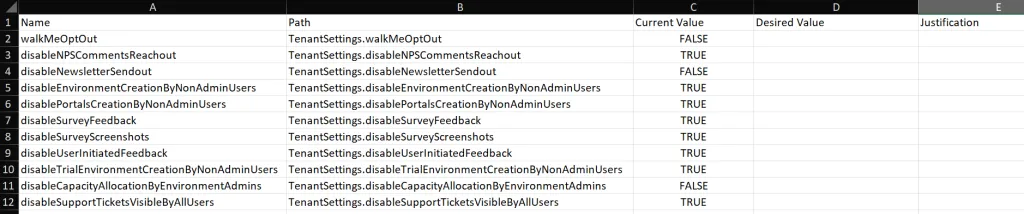
The resulting files contains 5 columns:
| Column | Description |
|---|---|
| Name | The setting name |
| Path | The full property path (used for updates) |
| Current Value | Current configuration in the tenant |
| Desired Value | Define target configuration here |
| Justification | Rationale for audit trail |
This file can then be used for governance review or approval, and later as input for the update script.
The Script to Update the Settings
Let’s now consider that the file was exported, desired setting values updated with internal alignment reached in the organization. How can we then actually update these tenant settings efficiently? We can just use PowerShell once again.
<#.SYNOPSIS    Updates Power Platform tenant settings based on an Excel input file.
.DESCRIPTION    Author: Valentin Mazhar    Blog: https://powertricks.io/export-and-update-tenant-settings    This script reads an Excel file containing flattened tenant settings,    and updates them only if a Desired Value and Justification are provided.    Supports nested property updates.
.NOTES    - Requires Microsoft.PowerApps.Administration.PowerShell    - Requires ImportExcel#>
# ----------------------------- CONFIGURABLE VARIABLES -----------------------------
# Path to the Excel file containing desired values$InputExcelPath = "C:\PS_Inputs\TenantSettings.xlsx"
# ----------------------------- MODULE CHECK & IMPORT -----------------------------
function Ensure-Module {    param (        [string]$ModuleName    )    if (-not (Get-Module -ListAvailable -Name $ModuleName)) {        Write-Host "Installing module '$ModuleName' in user scope..." -ForegroundColor Yellow        Install-Module -Name $ModuleName -Scope CurrentUser -Force -AllowClobber    } else {        Write-Host "Module '$ModuleName' is already installed." -ForegroundColor Green    }}
Ensure-Module -ModuleName "Microsoft.PowerApps.Administration.PowerShell"Ensure-Module -ModuleName "ImportExcel"
Import-Module Microsoft.PowerApps.Administration.PowerShellImport-Module ImportExcel
# ----------------------------- AUTHENTICATION & RETRIEVAL -----------------------------
Write-Host "Authenticating with a Tenant Admin account..." -ForegroundColor CyanAdd-PowerAppsAccount
Write-Host "Retrieving current tenant settings..." -ForegroundColor Cyan$currentSettings = Get-TenantSettings
# Deep copy current settings to updatedSettings$updatedSettings = $currentSettings | ConvertTo-Json -Depth 100 | ConvertFrom-Json
# ----------------------------- HELPER FUNCTION TO SET NESTED PROPERTY -----------------------------
function Set-PropertyValue {    param (        [ref]$Object,        [string]$Path,        $Value    )
    $parts = $Path -replace '^TenantSettings\.', '' -split '\.'    $target = $Object.Value
    for ($i = 0; $i -lt $parts.Length - 1; $i++) {        $target = $target.$($parts[$i])    }
    $finalProp = $parts[-1]    $target.$finalProp = $Value}
# ----------------------------- READ EXCEL FILE -----------------------------
Write-Host "Reading input file: $InputExcelPath" -ForegroundColor Cyan$settingsToUpdate = Import-Excel -Path $InputExcelPath
# ----------------------------- APPLY DESIRED VALUES -----------------------------
foreach ($row in $settingsToUpdate) {    $path = $row.Path    $desiredValue = $row.'Desired Value'    $justification = $row.Justification
    # Skip if desired value or justification is missing    if ([string]::IsNullOrWhiteSpace($desiredValue) -or [string]::IsNullOrWhiteSpace($justification)) {        Write-Host "Skipping '$path' due to missing Desired Value or Justification." -ForegroundColor Yellow        continue    }
    # Convert desired value to appropriate type    try {        $convertedValue = Invoke-Expression $desiredValue    } catch {        $convertedValue = $desiredValue    }
    # Update the nested property    try {        Set-PropertyValue -Object ([ref]$updatedSettings) -Path $path -Value $convertedValue        Write-Host "✅ Updated '$path' to '$convertedValue'" -ForegroundColor Cyan    } catch {        Write-Host "❌ Failed to update '$path'" -ForegroundColor Red    }}
# ----------------------------- APPLY UPDATED SETTINGS -----------------------------
Write-Host "Applying updated tenant settings..." -ForegroundColor GreenSet-TenantSettings $updatedSettingsWrite-Host "✅ Tenant settings updated successfully." -ForegroundColor Green
How it works
-
Reads the Excel file generated by the export script.
-
Compares current and desired values.
-
Updates only rows with both a Desired Value and Justification.
This ensures traceability and avoids accidental misconfiguration.
Recommendations & Potential Improvements
Recommendations
-
Understand each setting before updating. Some are legacy or misleadingly named. Cross-check with Microsoft docs. You can find here and here some documentation about existing settings.
-
Review impact before applying changes. Some might affect user immediately.
-
Collaborate** with security and platform stakeholders.** Transparency improves trust and reduces friction.
-
Schedule periodic reviews, at least once a year. Microsoft silently adds new settings more often than you’d expect.
Potential Improvements: these settings are also available via the bap API. The endpoint is still in preview, and it is unclear whether it will ever reach GA, be replaced by the more recent Power Platform API or just be forgotten forever. Using the API would make it easier to develop and automate a solution which would regularly check if any new setting is released and alert the admins, rather than doing this manually with PowerShell. It might or might not make a future post in this blog… Let me know if you’d be interested!
See also: These scripts manage tenant-level settings. For environment-level settings enforcement (PCF controls, session timeouts, Copilot Studio transcript settings, etc.), see the Environment Settings Enforcer, a CoE Kit extension that deploys and re-enforces environment settings on a daily schedule.
Newsletter
Stay in the loop
Get notified when I publish new articles on Power Platform Governance.

About Valentin Mazhar
Microsoft MVP and certified Solution Architect specializing in enterprise Power Platform governance, AI enablement, and operating models. With 5+ years delivering governance programs in regulated environments, Valentin helps organizations scale low-code and AI securely, building the foundations that let makers and agents thrive without compromising control.


