
Knowing what agents are configured to do is one thing, but organizations also need to know how to monitor agents at runtime. Knowing what users are actually saying to those agents, what data they are accessing, and whether anything risky is happening at runtime requires a different set of tools.
This article is part of the Copilot Studio Governance series. The master article covers the full governance landscape; this post focuses on the runtime monitoring stack specifically.
Two distinct monitoring problems exist here:
-
Compliance and security monitoring: what was said, was sensitive data shared, is anyone doing something risky? This is Purview territory
-
Operational monitoring: is the agent working as expected, what topics triggered, how much credits are being consumed, where do conversations fail? Dataverse transcripts and Application Insights cover that.
These are different tools, different audiences, and different prerequisites. CoE teams typically own the operational side. The Purview tools are primarily owned by compliance and security teams, and none of them are accessible to the Power Platform Admin role. Each requires dedicated roles assigned in the Microsoft Purview portal or Entra (such as Compliance Administrator, Audit Manager, or tool-specific role groups like Insider Risk Management or Communication Compliance). CoE involvement is usually limited to awareness and coordination.
This article covers each tool in the monitoring stack: what it shows, who owns it, what requires explicit configuration, and where coverage gaps exist.
On this page
Summary of Agent Monitoring Tools
Before going further, here is a summary table of what you’ll find in this article to monitor agents at runtime:
| Tools | What it shows | Audience | Notable constraint |
|---|---|---|---|
| Purview Audit Logs | Agent lifecycle events and interaction metadata (no conversation text) | Compliance / security | M365 license required per user for interaction events to be logged; some channels excluded from logging |
| DSPM for AI | Actual prompt / response content, sensitive data accessed, AI risk reports | Compliance managers | Global Admin cannot read content; Purview PAYG required for non-Microsoft channels; data risk assessments for SharePoint / OneDrive only |
| Communication Compliance | Content violations in conversations (regulatory, conduct) | Compliance / legal | Purview PAYG required for Copilot Studio; Global Admin is config-only; cannot investigate alerts; only available for tenants whose primary region is in the Azure dependency supported list |
| Insider Risk Management | Behavioural patterns, prompt injection, suspicious data access | Security team | Global Admin is config-only; cannot investigate cases; only available for tenants whose primary region is in the Azure dependency supported list |
| eDiscovery | Legal holds and export of specific interactions | Legal / compliance | Plan-dependent entitlement (Standard vs Premium); explicit Purview eDiscovery role required; Copilot Studio export/review-set actions may incur Purview PAYG |
| Data Lifecycle Management | Retention policies for interaction data in Exchange Online | Compliance | Uses the ‘Microsoft Copilot Experiences’ policy location, not Teams; Purview PAYG required; separate from Dataverse transcript retention, both must be addressed separately |
| Microsoft Sentinel | Alerting and automated response on audit events | SOC teams | Requires deliberate setup in Azure |
| Advanced Hunting & Threat Detection in Defender | Agent inventory, MCP tools, orphaned agents, hardcoded credentials | Security analysts | Requires PPAC + Defender enablement; runtime protection needs Entra app registration |
| Dataverse Transcripts | Full conversation text per agent | CoE | 30-day default retention; responses accessing SharePoint documents with sensitive data not included in transcript content |
| Application Insights | Per-agent operational telemetry (topics, latency, errors) | CoE / makers | No tenant-wide switch; per-agent config required; Azure subscription |
Purview Audit Logs
This is the foundational layer to monitor agents at runtime. Copilot Studio automatically sends events to the Purview unified audit log. If Auditing is turned on for the tenant, activity collection cannot be disabled at the source.
Two layers of events exist:
-
Authoring events: agent created, published, shared, component updated, authentication settings changed, and more. A single user action can trigger multiple events since logging occurs at the SDK layer, not the UI layer.
-
Usage events: a single
CopilotInteractionevent per user interaction. Contains metadata only: timestamp, user ID, resource ID, and a transcript thread ID. No conversation text is stored here. This is where DSPM comes in, described further below.
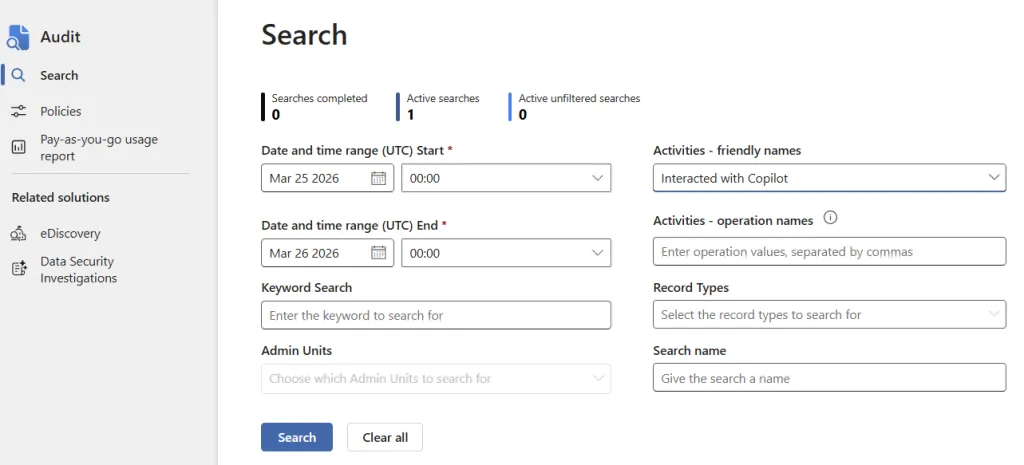
Key constraints:
-
M365 license required: Events are only captured for users with an assigned Microsoft 365 license. Agents serving external or unlicensed users will have an incomplete audit trail.
-
Some channels are excluded from logging: The official documentation confirms this without listing which channels are affected. The AppHost field in the event JSON identifies the channel.
-
Activity collection cannot be disabled, Copilot Studio always generates events. The Purview audit log that stores those events can be disabled tenant-wide, and retention policies can prevent message text from being retained.
Access: Microsoft Purview portal > Audit, or programmatically via the Office 365 Management Activity API.
Data Security Posture Management (DSPM)
DSPM is what makes audit events actionable for compliance and data security teams to monitor agents at runtime. It provides a unified AI governance view covering Copilot Studio, M365 Copilot, Security Copilot, and enterprise AI apps. Two versions exist: in the classic versions, there is a DSPM and a DSPM for AI specifically for Copilot & Copilot Studio interactions. The preview version unifies both word into a single tool.
What it can surface for Copilot Studio:
-
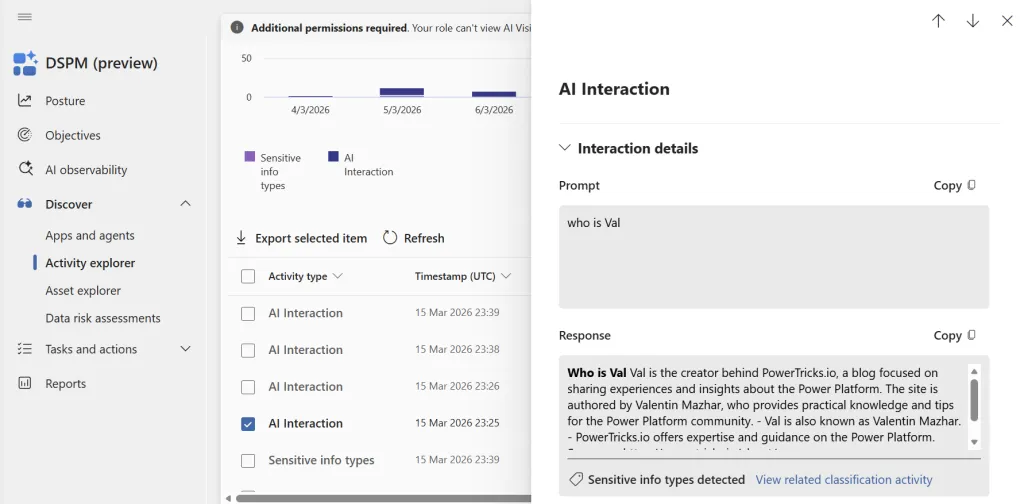
Actual prompt and response content linked from
CopilotInteractionaudit events (visible in Activity Explorer) -
Resources accessed during interactions and their sensitivity labels
-
Data risk assessments for internal oversharing detection (SharePoint/OneDrive only; Dataverse knowledge sources are not in scope)
-
Reports on sensitive interactions, risky AI usage, and insider risk severity
-
Sensitive information type (SIT) detections in prompts and responses, when built-in or custom classifiers match content in interactions, findings surface in the AI activities tab in Activity Explorer.
Key constraints:
-
Non-Microsoft channel constraint: Coverage for agents deployed to non-Microsoft channels (custom website, Direct Line) requires Purview pay-as-you-go billing to be enabled in the organisation. Without it, those interactions are invisible in DSPM.
-
Role constraint: Global Admin is not enough. Reading actual prompt and response content requires a specific role, such as the
Content Explorer Content Viewerrole or aData Security AI Content Viewerrole in Purview, to be explicitly assigned. Without one of them, the content of the interaction details will not show. -
On DLP: support exists but is limited. DLP for Copilot Studio only applies when the knowledge source is SharePoint, scoped to the Microsoft 365 Copilot location, and only for agents deployed to Teams, SharePoint, and M365 Copilot channels. Sensitivity labels do the heavy lifting in most Copilot Studio deployments. DLP’s coverage is thin and depends on a label taxonomy being in place anyway.
Primary audience: compliance managers, not CoE admins. For the full permissions reference, see Microsoft Purview AI permissions.
Communication Compliance
To monitor agents at runtime, Communication Compliance allows to create policies to detect content violations in agent conversations: sharing of sensitive information, inappropriate content, or organisation-specific policy violations (for example, the word “guarantee” appearing in a financial services context). Usernames are pseudonymised by default, reviewers see patterns, not immediately who said what.
Relevant primarily for regulated industries with explicit requirements around monitored communications.
PAYG billing required: Microsoft splits AI data into two tiers for Communication Compliance:
| Tier | Requires PAYG | Includes |
|---|---|---|
| Microsoft 365 Copilot data | No | M365 Copilot (Teams, Outlook, etc.) |
| Non-Microsoft 365 AI data | Yes | Copilot Studio, Copilot in Fabric, Security Copilot, connected AI apps |
Copilot Studio is a Power Platform product, not an M365 product. Its interaction data does not flow through the standard M365 message pipeline, which places it in the non-M365 tier. Purview Pay-as-you-go billing must be enabled before any Communication Compliance policy can capture Copilot Studio interactions. There is no charge for M365 Copilot interactions specifically, but PAYG must be active as a prerequisite even for those.
See the Microsoft Purview Communication Compliance for Copilot documentation for the full breakdown.
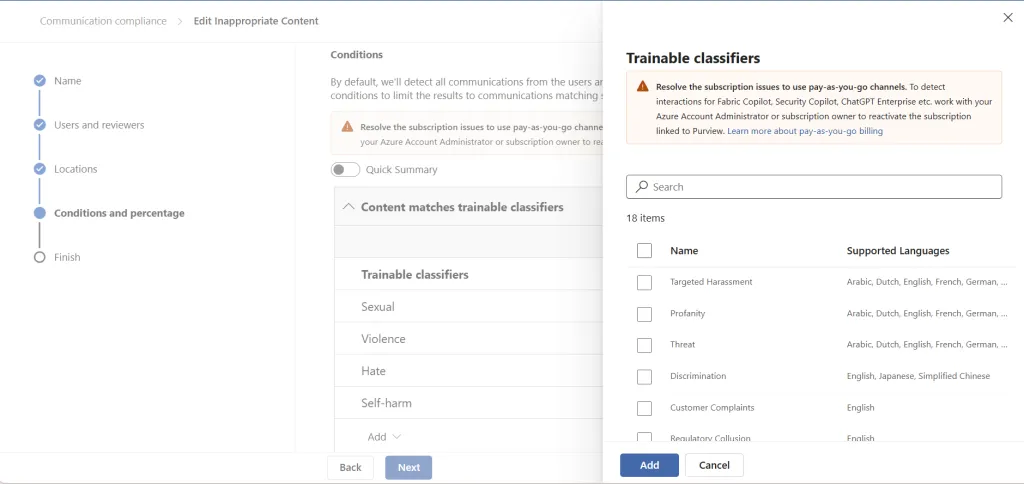
Key constraints:
-
Policy location: When creating or editing a policy, select Microsoft Copilot experiences as the location. Despite the name, this location covers Copilot Studio (as non-M365 AI data) in addition to M365 Copilot. Without PAYG enabled, Copilot Studio interactions will not be captured even if the location is selected.
-
Role constraint: Global Admin is config-only. Investigating alerts requires the
Communication Compliancerole, assigned in the Microsoft Purview portal. -
Regional availability constraint: Communication Compliance has Azure infrastructure dependencies that are only available to tenants whose primary country/region is in the supported list. Tenants provisioned outside these regions cannot use Communication Compliance, regardless of licensing.
Insider Risk Management
Insider Risk Management (IRM) helps to monitor agents at runtime by detecting behavioural patterns over time rather than individual violations. When creating a policy, it is possible to select the Risky AI usage policy template for Copilot Studio: it covers prompt injection attempts and users accessing protected materials through agents. Signals flow into Microsoft Defender XDR and can be correlated with other activity. For example, a departing employee querying sensitive documents through an agent in the weeks before their last day. Communication Compliance and IRM are complementary: CC catches the conversation-level violation; IRM builds the longer-term behavioural picture. Both feed into DSPM’s risk reports.
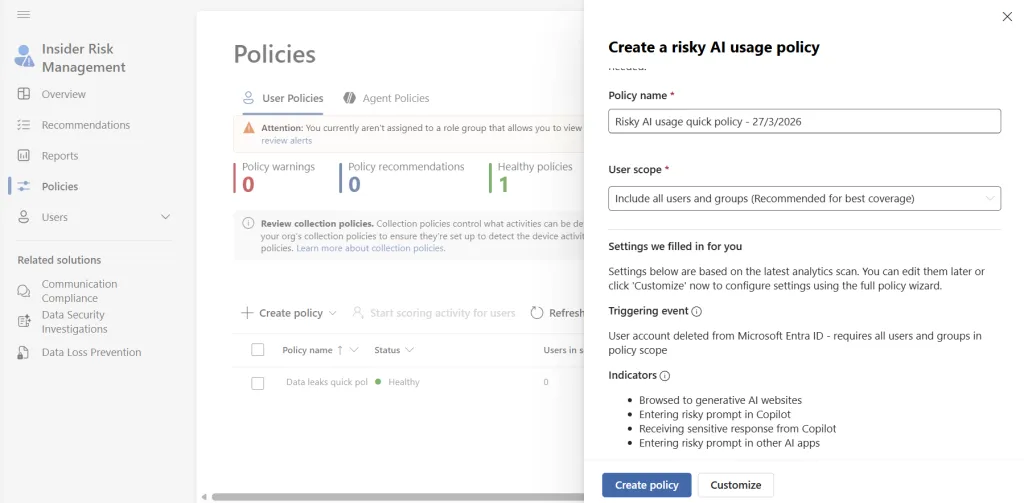
Key constraints:
-
Role constraint: Global Admin is config-only. Investigating cases requires the
IRMrole. -
Regional availability constraint: As for Communication Compliance, Insider Risk Management has Azure infrastructure dependencies that are only available to tenants whose primary country/region is in the supported list. Tenants provisioned outside these regions cannot use Insider Risk Management.
eDiscovery
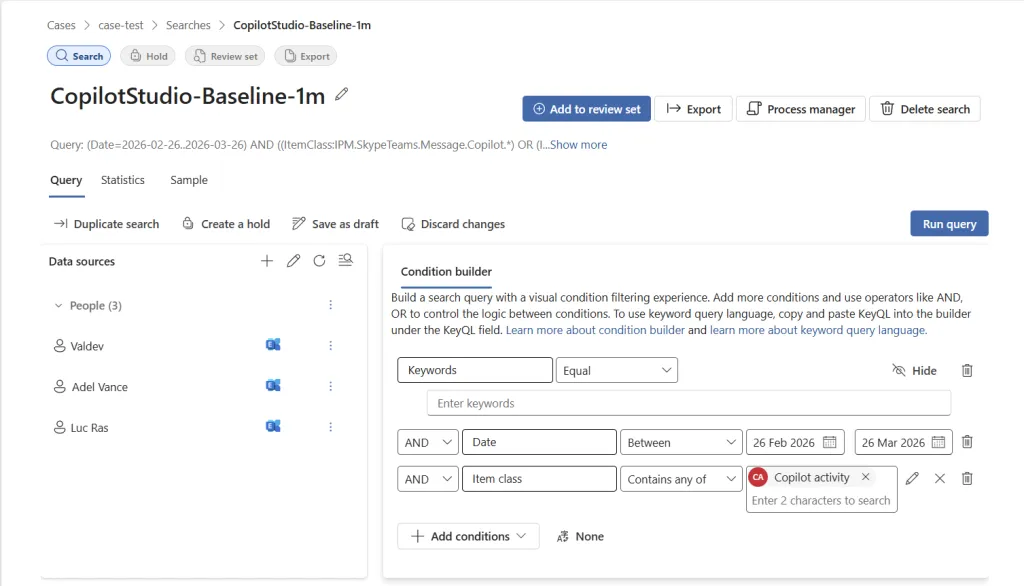
eDiscovery is the mechanism for legal and HR requests to retrieve specific interaction records. Copilot Studio interaction data (prompts and responses) is stored in a hidden folder in the user’s Exchange Online mailbox, not visible to users or admins directly, but searchable and holdable via eDiscovery.
Query syntax:
- In a search, add condition > Item class > Contains any of >
Copilot activity
Key constraints:
-
Licensing: Shoud be treated as a three-part check, not a single E3/E5 rule
-
Base entitlement (eDiscovery Standard): included in multiple Microsoft 365 and Office 365 enterprise/frontline plans (not only E3/E5). Validate against the current Microsoft plan comparison matrix for your exact SKU mix.
-
Premium entitlement (eDiscovery Premium): required for capabilities like custodian workflows, review sets, and advanced analytics. This is typically included in E5-class compliance bundles or enabled via add-ons such as Purview Suite / eDiscovery and Audit.
-
Data processing billing (Copilot Studio-specific): Copilot Studio interaction items are treated as non-Microsoft 365 AI data, so export or review-set operations can trigger Purview pay-as-you-go billing, independent of base plan entitlement.
-
-
Role constraint: Global Admin cannot use eDiscovery. Requires
Purview eDiscovery Manager(own cases only) orPurview eDiscovery Administrator(all cases). eDiscovery holds override Data Lifecycle Management deletion policies, a held item cannot be deleted regardless of the configured retention schedule.
Data Lifecycle Management
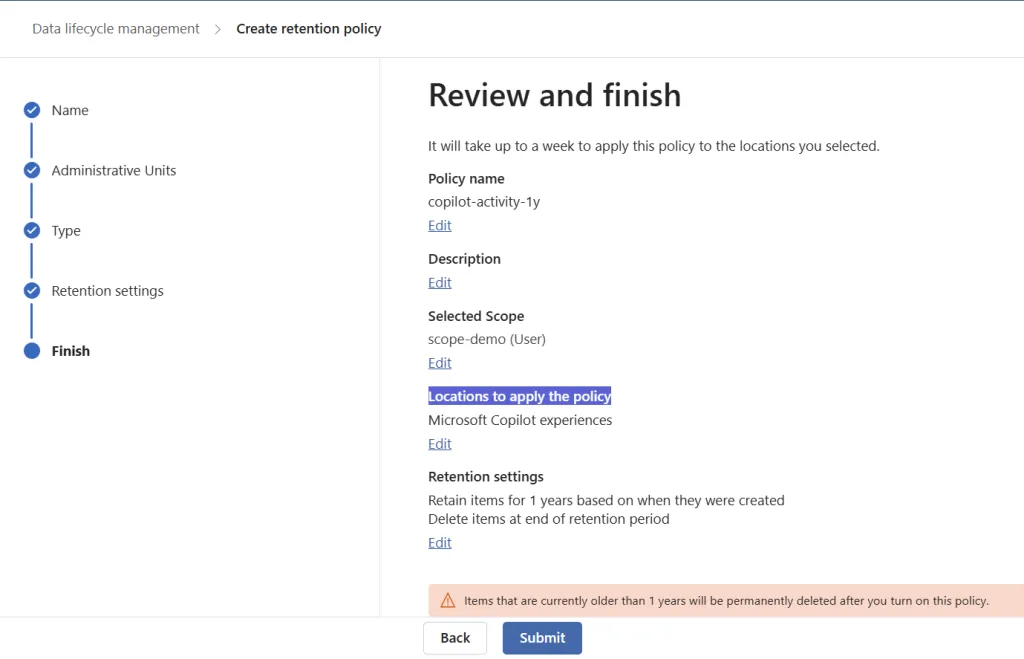
Data Lifecycle Management (DLM) sets retention and deletion policies for the Exchange Online storage described above, via Purview > Data Lifecycle Management > Retention Policies > location: Microsoft Copilot Experiences (this location covers Copilot Studio, M365 Copilot, Security Copilot, and Copilot in Fabric). It defines how long after the fact can we monitor agents at runtime.
Key constraints:
-
Purview PAYG billing required: Creating retention policies that include the Microsoft Copilot Experiences location requires pay-as-you-go billing to be enabled. There is no charge for M365 Copilot interactions, but PAYG must be active as a prerequisite.
-
This is independent of Dataverse transcript retention: A DLM policy and a Dataverse bulk-delete job are two different things covering two different storage locations. Both need to be configured independently. Configuring one does not address the other.
Microsoft Sentinel
For organisations with a SOC team or an existing Sentinel deployment. Sentinel allows to monitor agents at runtime by ingesting Copilot Studio audit events from Purview and enables custom detection rules, automated alerts, and incident response workflows.
Without Sentinel, the Office 365 Management Activity API is the universal path to SIEM integration: register an Entra application, configure a data collection rule, and any SIEM can poll it. Splunk, QRadar, and Elastic all support this natively. IRM alerts are also exported every 60 minutes via the same API schema. CEF, Syslog, and REST API connectors are available for other security products.
This requires deliberate setup and an active Azure workspace. Not a default capability, if your organisation has a SOC, they should be aware that Copilot Studio audit events flow through the same Purview pipeline as the rest of M365.
Advanced Hunting & Threat Detection in Defender
For organisations using Microsoft Defender for Cloud Apps, the Advanced Hunting feature provides KQL access to Copilot Studio agent data via the AIAgentsInfo table. This enables proactive threat hunting without requiring a full Sentinel deployment.
Setup:
- Enable the Copilot Studio AI Agents connection in Defender portal > Settings > Cloud Apps > Copilot Studio AI Agents
- Enable Microsoft Defender in Power Platform Admin Center > Security > Threat Detection
Once enabled, security teams can query for orphaned agents with disabled owners, agents with MCP tools configured, hardcoded credentials in topics or actions, and recently published agents. Community KQL queries are available in the Defender portal under Advanced Hunting > Queries > Community queries > AI Agents. For a walkthrough with sample queries, see this video from Wario Wario.
Optional: Runtime prompt injection protection can be enabled to block attacks in real-time. This requires Entra app registration, more information in this article, once again from Wario: Microsoft Defender + Copilot Studio AI agents.
Dataverse Conversation Transcripts
The most practical source of full conversation content for CoE teams. Copilot Studio stores complete transcripts in the Dataverse conversationtranscripts table.
Key facts:
-
Default retention: 30 days. If an incident surfaces 45 days after the fact and retention has not been extended, the data is gone. This should be addressed before it is needed, not after.
-
To extend retention, the default bulk-delete job in Dataverse should be cancelled and replaced with a longer interval. Long-term cost-effective storage can be achieved by exporting to Azure Data Lake Storage Gen2 via Azure Synapse Link.
-
Makers can view and download transcripts for their own agents directly in Copilot Studio, no additional role required by default.
-
To view transcripts in Power Apps, the Bot Transcript Viewer security role is required. Only admins can grant it, and only during agent sharing.
-
Admins can restrict access per-environment or via environment groups: disable maker access to transcripts entirely, or stop saving transcripts for a given environment.
Transcripts are not stored in Dataverse for:
-
Microsoft Dataverse for Teams environments
-
Dataverse developer environments
-
Microsoft 365 Copilot agents
-
Responses sourced from SharePoint knowledge sources where the accessed document has a sensitivity label applied. Those specific responses are excluded. Responses from unlabelled SharePoint documents are included. This is a scoped exclusion, not a blanket SharePoint exclusion.
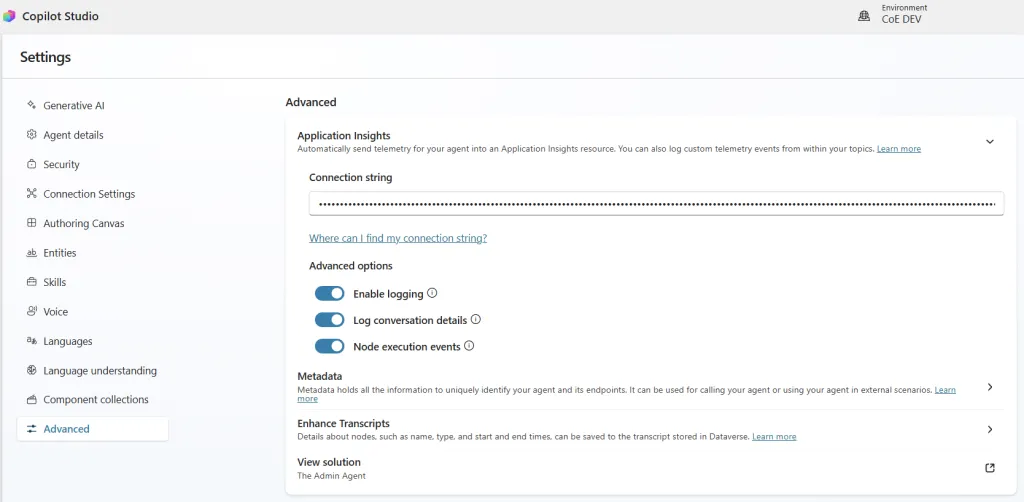
Optional: Enhanced Transcripts (Settings > Advanced > Enhance Transcripts) can be enabled to capture node-level detail per topic: which branches executed, how long each node took. Useful for funnel analysis and diagnosing slow generative responses.
Application Insights
Per-agent operational monitoring. Individual Copilot Studio agents can be connected to Azure Monitor’s Application Insights to capture message-level telemetry, topics triggered, latency, and custom events.
No tenant-wide switch exists. Configuration is per agent. Without a governance requirement enforcing connection to a centralised workspace, monitoring across the tenant will be fragmented or absent.
Configuration: Settings > Advanced > Application Insights. Two toggles:
-
Log activities messages and events
-
Log sensitive Activity properties — user ID, name, message text. Off by default; enabling has privacy implications that should be documented in internal policies before being turned on.
Viewing: Application Insights > Monitoring > Workbooks > Copilot Studio Dashboard. This feature is currently in preview.
Requires an Azure subscription (Azure Monitor cost, separate from Power Platform licensing).
The right governance approach: a requirement for makers to configure Application Insights against a single centralised workspace should be defined as part of agent publishing standards. Without this, CoE-level visibility across agents is not possible.
Third-Party Security Platforms
Beyond the Microsoft tooling above, third-party security platforms offer additional runtime protection and monitoring capabilities for Power Platform and Copilot Studio environments.
Zenity has a verified integration with Copilot Studio, with inline prevention capabilities reaching general availability in November 2025. It operates within agents built in Copilot Studio to provide:
-
Real-time detection of prompt injection attempts, data leakage, and behavioural anomalies
-
Inline controls on tool invocations (MCP servers, CRM systems, business applications, email) to prevent data exfiltration and improper secrets handling
-
Policy enforcement embedded directly into the agent creation process
Coverage, integration depth, and prerequisites vary by vendor and should be evaluated against the organisation’s existing security tooling before adoption.
Conclusion
There isn’t a single capability to monitor Copilot Studio Agents at runtime. It is a combination of tools split across two distinct domains that rarely share ownership, licensing, or even vocabulary.
The compliance side (Purview) is deep but gated: every meaningful capability beyond basic audit logging requires dedicated roles, explicit Purview PAYG billing, and configuration that no one inherits by default. The operational side (Dataverse transcripts, Application Insights) is more accessible but fragmented: per-agent setup, short default retention, and no tenant-wide aggregation unless someone builds it.
This split reflects a broader reality in the Microsoft stack: governance tooling was built for M365, and Power Platform was bolted on after the fact. Copilot Studio data is classified as “non-Microsoft 365 AI data” in nearly every Purview context, which means it consistently falls into the tier that requires additional licensing and configuration. Organisations that assume their existing M365 compliance posture extends to Copilot Studio will find gaps: not because the tools don’t exist, but because they don’t activate automatically.
The organisations that will handle this well are the ones that treat Copilot Studio monitoring as a cross-team concern from the start, not something the CoE figures out alone after the first incident.
For the restriction and control side of the governance picture such as DLP, tenant settings, sharing limits, and Computer Use controls, see Copilot Studio Governance: The Complete Admin Reference.
Newsletter
Stay in the loop
Get notified when I publish new articles on Power Platform Governance.

About Valentin Mazhar
Microsoft MVP and certified Solution Architect specializing in enterprise Power Platform governance, AI enablement, and operating models. With 5+ years delivering governance programs in regulated environments, Valentin helps organizations scale low-code and AI securely, building the foundations that let makers and agents thrive without compromising control.


