Enforce Environment Settings with the Settings Enforcer
As the Power Platform adoption continues to grow, many organizations start to adopt governance and operational models involving other teams. Indeed, it becomes increasingly hard for CoEs to manage everything themselves in large organizations. And delegating some governance and admin tasks to Environment Administrators present many benefits. That said… I am sure that CoEs will empathize with the below issue.
There are (too) many environments settings which Tenant Admins cannot enforce. Environment Admins can manage these environment settings without any control from the Tenant Administrators.
From a governance point of view, this is not ideal. This is when the Environment Settings Enforcer solution comes in!

Control over Environment Settings is key
As the platform adoption grows in a large organization, a fully centralized model where the CoE would manage everything both at tenant and environment level becomes less and less realistic. I present an alternative to this model in this other post. This involves delegating the administration of environments to Environment Administrators, who do not hold the Power Platform Tenant Administrator role.
But Environment Administrators have a lot of power. In addition to being able to control the Access to their Environments, they also have full control over the Environment Settings from the Power Platform Admin Center. While it is good to have the flexibility to manage those at environment level as opposed to tenant level only, Tenant Admins also need a way to enforce certain configurations on all environments.
Let’s look at at a few examples.
Power Apps component framework for canvas apps

Once enabled on an environment, the Power Apps component framework allows to develop an import custom controls for Power Apps applications, called “Code Components”. From a functionality perspective, this is fantastic (as long as whoever is providing them has the resources to maintain them). You can create and customize controls for both Canvas and Model Driven Apps. This opens many possibilities, including the benefits of leveraging the amazing Power Platform community which generously shared custom components such as in this PCF Gallery site.
From a security and governance point of view, however, this raises a few concerns. Microsoft themselves indicate this in their documentation:

😱😨😨😱… Right, and what is available for Tenant Admins to ensure this does not open to security breaches? Today, nothing. Tenant Admins cannot even prevent Environment Administrators from being able to turn this setting on. Once turned on, any Maker with sufficient permissions over the environment can download any code components they find on the web and import them into the environment.
Session and Inactivity Time Out
Admins have the possibility to configure specific Session Time Out duration and Inactivity Time Out durations for their environments.

Some organizations might have internal policies defining session time outs, regardless of the platform. Having the possibility for Tenant Admins to define such configurations at tenant level, without having to rely on each Environment Administrator to do so can save time and effort. It is worth mentioning that such durations are not enforced for Canvas Apps though…
Create Apps and Flows in Solutions by Default
This is a very interesting couple of environment settings, still in preview at the time of writing this blog post.

Essentially with these settings on, when a Maker creates a Flow or App without creating it from a solution directly, the App/Flow will still be in a solution by default. Each Maker can define their preferred solution with an appropriate publisher. Working with Solutions is a general best practice, and being able to enforce the use of Solution present a few benefits, such as:
- Environment Backup and Restore operations only include Apps and Flows in solutions.
- Having all Flows and Apps in a solution makes things a lot easier if they need to be moved to another environment. For example, Tenant Admins could be conducting initiatives to move things away from the
messydefault environment… In which case it would be a lot easier to create a solution for the migration and select the Apps and Flows from the preferred solution which should be moved.
The feature is still in preview, but definitely worth a look in my opinion!
A Gap in the Power Platform Governance functionalities
Tenant Admins have been asking Microsoft for this for a while: we need a way to enforce Environment Settings as tenant administrator, while being able to delegate Environment Administration to Environment Admins. Let’s start by being fair in acknowledging and appreciating some of the controls that Tenant Admins can already have over the platform and environments:
- Possibility to restrict Environment Creation to Tenant Admins only,
- Possibility to restrict Capacity Addons allocation to Tenant Admins only,
- Possibility to restrict Power Pages provisioning to Tenant Admins only,
- Possibility to create Tenant DLP Policies which Environment Admins cannot overwrite.
Unfortunately though many Environment Settings cannot be enforced or set at tenant level in an easy way. What we need is not new and already exists in some kind for other things. Think of the DLP Policies for example, what we would need for Environment settings is pretty similar. How great would it be if tenant admins could configure setting policies for environments? This might come one day in the platform. However, if it does, and looking at the current platform evolution, it will probably be for Managed Environments only… Hence this more affordable and customizable alternative, the Settings Enforcer!
The Environment Settings Enforcer solution
The Environment Settings enforcer is available on my GitHub repository. It is a Solution mainly comprising a Model Driven Apps, some cloud flows and some dataverse tables. It has to be added to an environment where the CoE Starter Kit core components are installed. More technical information about the set up is available on GitHub.
Some background information about Environment Settings
Most environment setting configurations are stored in the “organization” table of each environment. When changing an environment setting from the Admin Center, it is sending a Patch request to this table to change the value of the selected setting. This table has one single row for the environment, and one column per setting.

The organization table contains hundreds of columns, with a Display Name and Description more or less specific and understandable depending on the setting / column.
How to use the Settings Enforcer
After installing the solution, there are four main steps required to set up the Environment Settings Enforcer.

- Add the relevant Setting Options: tenant Admins have to add all the settings which they want to control via the Settings Enforcer. These setting options are saved in the Setting Options table.
- Set the Setting Configurations: Once the setting options are defined, the admins have to define the configuration values they would like for these settings. These values are saved in the Setting Configurations table.
- Set the Setting Policies: The admins can set up the policies by including all the setting configurations relevant for that policy and all the environments they should apply to. These policies are saved in the Setting Policies table.
- Deploy the Policies: Finally, the policies can either be deployed manually or automatically on a daily schedule.
1. Add the relevant Setting Options
By using the Environments Setting Manager App, it is possible to add all the environment settings which the admins want to enforce on environments. Each row in the Setting Options table correspond to a column in the organization table for which we want to enforce values.

When adding a new Setting Option, we have to indicate:
- Name: a name of the setting which makes sense for the admin
- Display Name: here I propose to keep the display name of the related organization table column, defined by Microsoft
- Description
- Logical Name: this has to be the logical name of the related column of the organization table. This column will be used to send the patch request to set the setting value as required on each environment included in a policy
- Type: there are two options here:
- Is Feature Enabled: this covers all the settings which are either enabled or turned off, such as the Component Framework setting
- Integer: this covers the settings which are configured with a number, such as the duration for inactivity time out.
The approach would therefore be for the Tenant Admins to explore the Environment settings in the Power Platform Admin Center and the Organization table of an environment to review the settings which they would like to control globally. For each relevant setting they would create a row in the Setting Options table.
Prepopulate some common Setting Options
In an attempt to ease the life of the admins, I have included a manual flow called “Setting Enforcer – PrePopulate Some Common Setting Options” in the solution which will add 25 common setting options in the table, including:
- PCF Components Enabled: whether the component framework is enabled for Power Apps

- Session and Inactivity Time Out settings Options: configuration of session time and inactivity time out. For each, there is a setting to define if the time out should be enabled, another one to set the duration and a third one to define when a reminder should be shown on screen.
- Apps and Flows in Solution by Default: two options to enable or disable this feature still in preview at this stage.
- AI Builder Preview Models Enabled: Whether the preview AI Builder models are available.
- Power Apps Copilot Enabled: Whether the Power Apps Copilot preview features are enabled.
- Ideas Data Collection Enabled: Whether data collection for ideas in canvas Apps is enabled.
- Cloud Flow Run History Retention in Dataverse: How long should the flows run history be retained in Dataverse. From the PPAC it can only be set to 4 values and maximum of 28 days. It can actually be set with a number of seconds, from 0 to 2,147,483,647 (around 68 years).
- Model-driven App Release Channel: Number to define the MDA Release Channel. Auto: 0 – Monthly: 1 – Semi-annual: 3 – more info here.
- AI Prompts Enabled: Indicates whether AI Prompts feature is enabled in Power Platform and Copilot Studio.
- Basic and Full Geospatial Features: Whether the basic and full Geospatial Features are enabled.
- Copilot Studio Transcripts Storage and Visibility: Whether transcripts are written to Dataverse and whether they are visible by Agent Owners and Editors, as opposed to Admins only.
- Process Capacity Overage and Auto-Claim: whether Process usage can go over allocated capacity and if the Auto-claim feature is enabled.
- Restrict Guest User Access: whether Guest accounts added to the environment can access the environment resources.
- MCS Maker-provided Credentials Blocked: whether end users can use the Makers’ connection with Copilot Studio agents.
- MCS Computer Use Enabled: whether the Computer Use Tools can be used in Copilot Studio Agents.
- MCS Computer Use Logs to Purview Enabled: whether Computer Use Logs are sent to Purview.


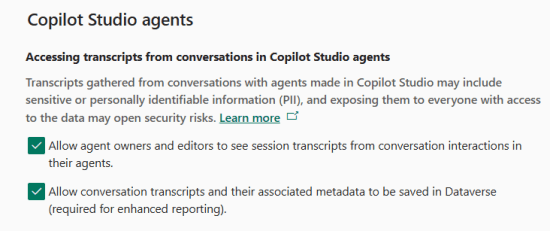


The Copilot Studio-specific settings above (maker credentials, Computer Use, transcripts) are covered in depth in the Copilot Studio Governance: The Complete Admin Reference, including the governance rationale for each.
This is of course only a selection and tenant admins can add a lot more!
2. Set the Setting Configurations
After adding the setting options, we have to create the configurations for these options which we will want to later include in the setting policies.
For instance, let’s consider we want to create a policy to disable the PCF components. We then need to create a setting configuration, associate it to the “PCF Components Enabled” Setting Option, and configure it as disabled.

3. Set the Setting Policies
Following the creation of the Setting Configurations, we can configure a setting policy. To create a Policy, we need to define:
- Name: to identify the policy
- Priority: the policies will be applied from the lowest to the highest (1) priority. In other words, and in case of several policies applied to a same environment automatically, the policy with the highest priority will be applied last and will overwrite any other configurations.
- Auto-Request: if set to Yes, the policy will apply everyday to the added environments thanks to a flow. This way, even if a system administrator modifies the configuration it will always be reverted back to the configuration defined by the tenant admin.
- Setting Configurations: the relevant setting configurations defined in the step 2.
- Selected Environments: all the environments the policies should apply to. They can be selected from the CoE Kit environment table which explains why the CoE Kit solution has to be installed on the same environment.

4. Deploy the Policies
To deploy a setting policy manually, it is possible to click on the “Deploy” button in the command bar from the Policy main form. This will prompt for a confirmation and will then deploy the policy.

The deployment process is as below:
- A row is added in the “Policy Deployments” table. This row registers that there has been a request to deploy the policy
- This triggers the Flow “Setting Enforcer – Trigger Setting Deployments”, which loops through each environment, and for each adds a row in the “Setting Deployments” table
- Finally, the Flow “Setting Enforcer – Deploy Settings On Environment” will run for each environment and patch all the policy setting configurations on the target environment.
Automatically and every day, the Flow “Setting Enforcer – Auto-Request Policy Deployments” will run to request the deployment of all the policies set for “Auto-Request”. If the environment variable “EnvSetEnforcerRandomDelayOn” is set to true, this flow will run at a different time of the day every day to prevent workarounds from malicious System Administrators 😁
Recommendations
Here are a few recommendations with the environment setting enforcer solution.
- Ensure that the behavior of the setting options is understood prior to including them in a policy. Some columns from the organization table of an environment are mysterious. Even after testing I am not sure what they are responsible for. Best is to always do enough testing prior to including them in a policy.
- Note that all Environments might not support the same settings. based on the region of an environments and other things, the settings available might not be the same for all environments.
- Assess and communicate about the impact prior to deploying a policy. Disabling a setting option on an environment can have an impact if is is used by solutions on that environment. Make sure to assess the impact and inform the impacted parties prior to deploying a policy.
- Share feedback with me! The more feedback you share, the better the solution will get 😁
Feel free to subscribe if you liked the post
Don’t hesitate to share your thoughts in a comment! If you would like to see more posts like this then feel free to subscribe to this blog. You won’t be spammed, just informed when there is some new Power Platform related content.


8 Comments
Heather · June 24, 2025 at 4:27 pm
It would be great if there was a setting to make policies “global” and then flow that would trigger when a new environment is added to the CoE table and automatically add that environment to any policies marked global 🙂
Valentin Mazhar · June 24, 2025 at 4:33 pm
Hi Heather, thanks for the idea, yes I agree! Being able to add new environments to a default setting policies is a great idea.
At the moment it can be done by creating a custom Flow.
I imagine that there are multiple situations when an org would want to automatically add an environment to a specific policy. What about creating a child flow which takes the environment and a policy id as input, and does the job to add the environment to the policy? This way it can be used easily for any process.
Would that be helpful? Or would you see still see value in this “global” feature instead?
Heather · July 1, 2025 at 2:54 am
I actually just finished customizing the solution to add a “global” column which I can set in the app that then branches in the flow to pull all environments in the tenant that are not deleted or Teams (NotSpecified) or Default (because those settings are weird) and applies the policy to all of them regardless of the selected environments. Works well! I also added another setting option type so I can now choose Is Feature Enabled, Integer, and String which allows me to set orgdborgsettings so I can block unmanaged customizations in our production environments. Woo! This was really fun to work on and this app is AWESOME. We’ve been able to automate every setting that impacts our PPAC security score.
Valentin Mazhar · July 21, 2025 at 9:53 am
Amazing! This is exactly what the solutions I share here are intended for: to be used and customized to fit the needs of whoever is using it!
That said… All your improvements would make a lot of sense to be added in the solution for everyone. Would you be available to connect to show me what you have implemented and share your feedback? This would help me to incorporate similar changes in the solution for others to enjoy too!
Please reach out via LinkedIn if you are up for it
Jim · November 3, 2025 at 12:37 pm
Hi, Yes – this is brilliant. I also wanted to improve the Security Score / block Guest Access – and we have a few 1000 Developer environments, so this will massively help. Its useful to create a view for the environments you want to. In my case ‘sku = Developer’ but I think there will be other useful views aswell – then you can easily bulk add them. Thanks again.
Valentin Mazhar · November 5, 2025 at 8:57 am
Glad this is helpful for you Jim! Absolutely, applying setting policies based on environment sku is a good use case. It could be automated as well, so that any new developer environment is automatically added to a setting policy and that policy re-deployed
Jim · November 3, 2025 at 12:39 pm
Just an fyi – I could not find any columns in the organization table relating to the Fabric settings/features
Valentin Mazhar · November 5, 2025 at 8:57 am
Hi Jim, which specific settings are you interested in?